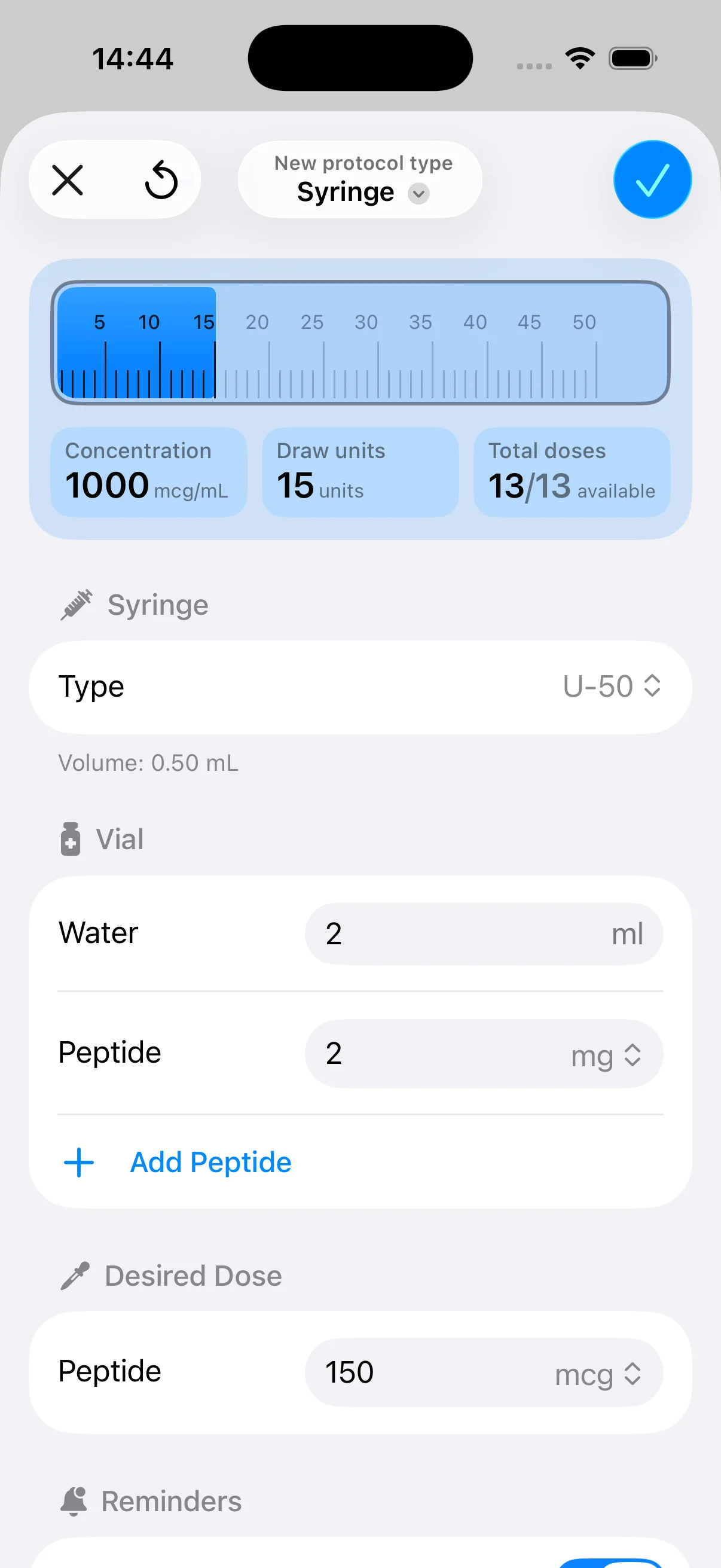
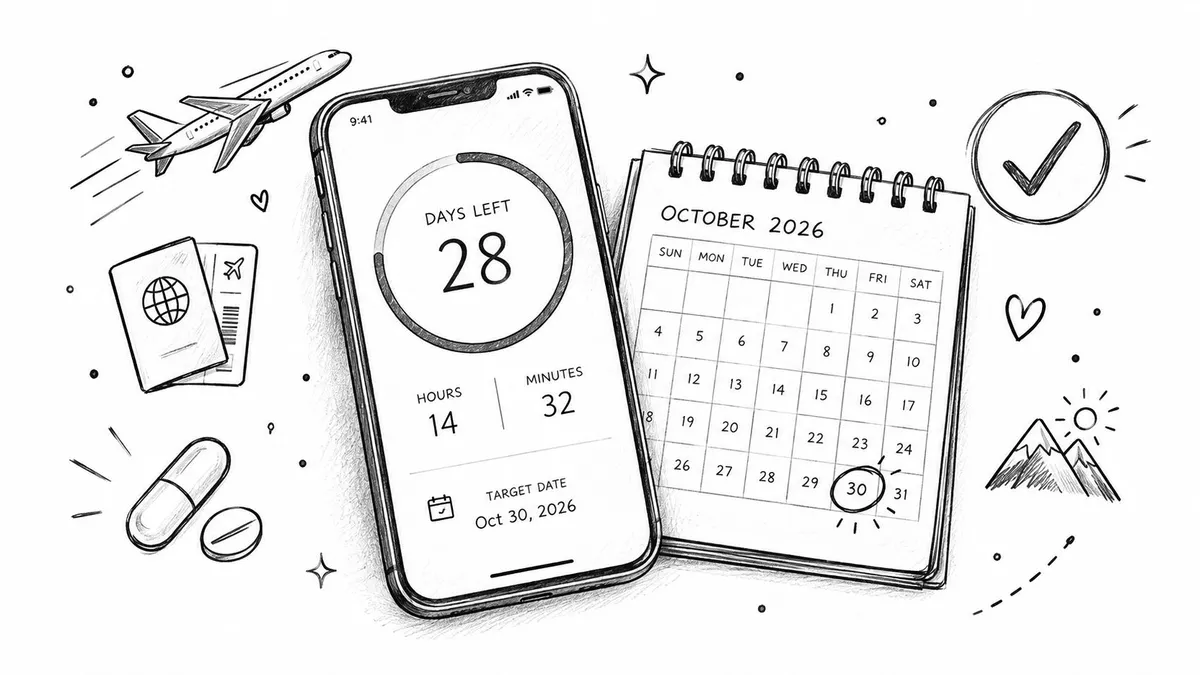
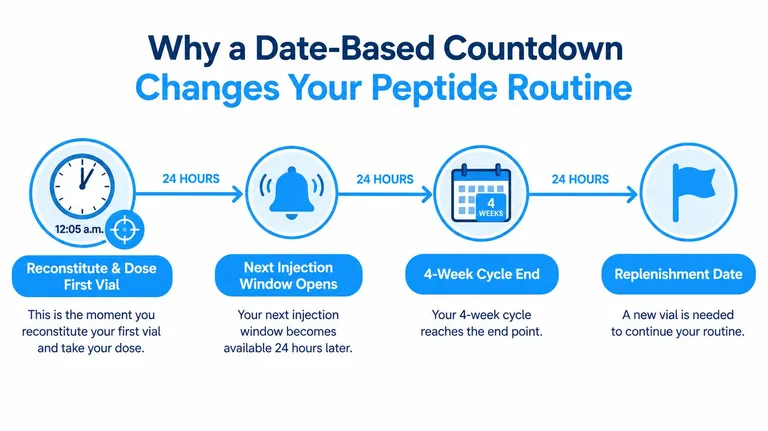
You’ve just reconstituted your first vial, taken the first dose at 12:05 a.m., and now you’re trying to work out three things at once: when the next injection window opens, when the cycle ends, and when you need supplies ready. Mental arithmetic feels manageable at the start, but it becomes unreliable once travel, missed doses, time-zone changes, or a late-night preparation enters the routine.
A countdown timer to date gives each milestone a fixed target instead of asking you to keep recalculating it. Used properly, it connects vial preparation, first dose, cycle midpoint, cycle end, and replenishment planning without turning your protocol into a spreadsheet you have to maintain every day. PepFlow is useful here as an organization tool, not as a replacement for prescribing guidance or clinical supervision.
Table of Contents
- Why a Date-Based Countdown Changes Your Peptide Routine
- Creating Your First Countdown Timer to Date in PepFlow
- Setting the Right Time Zone for a Reliable Countdown
- Pausing, Resuming, and Editing a Running Countdown
- Using Home Screen Widgets and Live Activity Countdowns
- Layering Multiple Countdowns Inside a Cycled Protocol
- Habits and Quick Fixes for Countdowns That Stay Accurate
Why a Date-Based Countdown Changes Your Peptide Routine
At 12:05 a.m., the important event is not just “start cycle.” It’s a specific moment. The next injection window depends on that starting point, and the cycle endpoint depends on the date and time you choose as the reference. If you record only the day, you lose the time component. If you rely on memory, you’ll eventually count from the wrong day.
A date-based countdown removes that daily calculation. Instead of asking, “How many days have passed since I prepared the vial?” you can check the target for the next action or milestone. That distinction matters when the routine includes several anchors:
- Vial preparation: Record when the vial was prepared and when the protocol is intended to begin.
- First dose: Use the actual first-dose date and time as the starting reference when that’s how your clinician has structured the routine.
- Cycle endpoint: Create a separate target for the planned end rather than estimating it from a changing daily count.
- Replenishment: Set a planning milestone for the point at which supplies should be reviewed or replaced.
The practical improvement is consistency. Calendar reminders can tell you that something is due, but they don’t always show the relationship between the current moment and a fixed endpoint. A countdown does. It keeps the routine visible while leaving the medical decisions, including dose changes or pauses, to the appropriate professional.
Why fixed targets work better than manual subtraction
A reliable timer should store the fixed end timestamp and calculate the remaining time from the current clock on every update. That approach corrects for processing delays and background-browser throttling instead of allowing small errors to accumulate through repeated subtraction, as explained in guidance on building a date countdown from a target timestamp.
This pattern has a long history outside health routines. OMEGA describes introducing the countdown clock concept at the Torino 2006 Olympic Winter Games and unveiling a Youth Olympic Games countdown clock in August 2009, one year before the Opening Ceremony. Its historical timeline also places OMEGA’s Olympic timekeeping role in 1932, when it supplied high-precision chronographs, showing how countdowns evolved from operational instruments into public planning symbols in OMEGA’s timekeeping history.
For a peptide routine, the lesson is simple. Anchor the clock to a real event, then let the timer handle the remaining-time calculation. For more help keeping dose actions aligned with planned times, see PepFlow’s guide to adherence to a schedule.
Creating Your First Countdown Timer to Date in PepFlow
Start with one milestone rather than filling the screen with several targets. Your first countdown should answer a question you’ll ask, such as “How long until the next scheduled protocol step?” or “How long until the planned cycle endpoint?”
Set up the first target
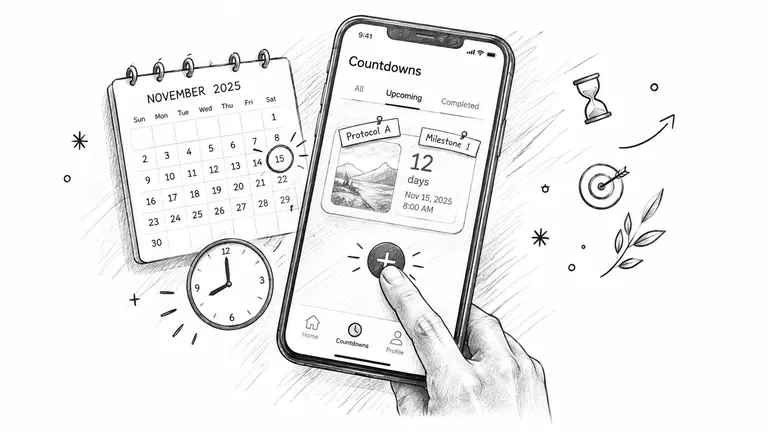
Open the app and go to the Countdowns tab. Tap the plus button, then enter the target date and time. Choose the moment that matters operationally, not a vague label such as “next week.” If the cycle ends at a particular time, enter that time. If your plan uses a date-only endpoint, confirm how the app interprets the time before saving.
Use a label that combines the protocol and milestone. A label such as BPC-157 cycle end is easier to recognize than “End” when several countdowns appear together. Other useful patterns include Protocol name, first dose, Protocol name, loading phase end, or Protocol name, restock review.
Make the display serve your routine
Seconds can help when you’re watching a near-term event, but they add visual noise to a milestone that’s still far away. For a cycle endpoint, days and hours may be easier to review. For a dose window that’s approaching, minutes and seconds can be useful.
Rounding the endpoint to a practical review time can also make the routine easier to manage, but only do that if it matches the protocol instructions you’ve been given. Don’t move a clinical target just to make the countdown look neater.
Once you save the countdown, confirm that it appears in the active list before creating another one. The app handles the day, hour, minute, and second calculation after you select the target. Your responsibility is choosing the correct event, date, time, and time zone.
Practical rule: Compare the saved countdown with a calendar entry for the same milestone. If the two disagree, resolve the date or time before relying on either reminder.
Setting the Right Time Zone for a Reliable Countdown
A date and time without a named time zone can describe different real-world moments. That’s why a countdown set for a local-looking morning can land on the wrong day after travel, or shift unexpectedly when local clocks change. Technical guidance recommends storing and comparing the underlying moment in UTC while retaining the intended time zone for display, as described in this explanation of time zones and date countdowns.
When you create or edit a countdown, decide what the target means:
- Device’s current zone: Use this when the routine is meant to follow local time wherever you are.
- Saved home or travel zone: Use the intended protocol zone when the target should remain tied to home time during a short trip.
- Specific named zone: Select the actual location rather than relying on a generic offset when the app provides a choice.
The key distinction is whether the schedule follows your body’s current location or the protocol’s designated local clock. A person flying across zones may want a target to remain in their home zone, while someone following a routine based on local daily timing may need the countdown to convert as they travel.
Treat daylight saving changes as a configuration issue
Suppose you set a target for 7:00 a.m. on March 12 in New York. When clocks move forward, the elapsed duration around that local date won’t behave like a simple sequence of identical 24-hour periods. The app can handle the conversion when the correct named zone is selected, but it can’t infer your intention from an ambiguous local time.
Before publishing or relying on a countdown, open its detail view and verify the time-zone abbreviation. Check it again after landing in a different region, especially if a dose window falls during a flight. Don’t change the target casually while traveling. First decide whether the scheduled moment belongs to the departure zone, destination zone, or a clinician-approved local-time routine, then edit the countdown deliberately.
Pausing, Resuming, and Editing a Running Countdown
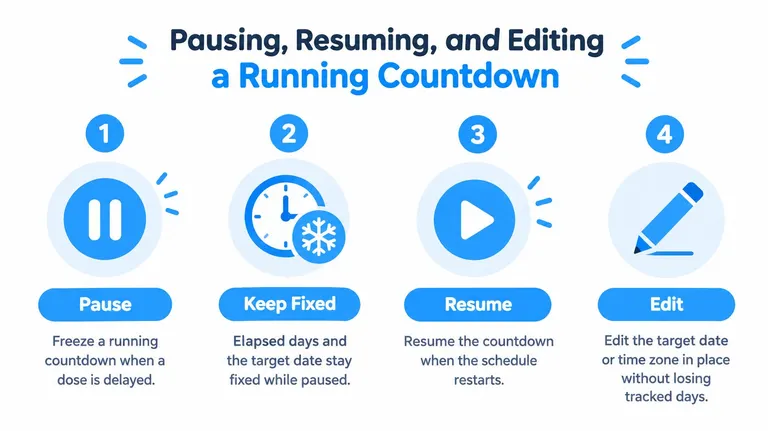
A running countdown assumes the plan is still active. If a missed injection, illness, delayed kit, or incomplete vial preparation changes the plan, letting the clock continue can create a misleading sense of progress. Pause the countdown when the milestone itself should stop moving while you clarify the next step.
Use the pause action from the active countdown. While paused, the elapsed portion and target should remain fixed, and the widget should show that the countdown isn’t actively advancing. When you resume, the timer should continue from the stored target rather than silently creating a new starting point.
That distinction prevents drift. You’re not pretending that a missed day didn’t happen, and you’re not automatically extending or shortening a cycle without deciding to do so. If the protocol needs a new endpoint, edit the target date and time intentionally. If the plan has changed medically, confirm the new schedule with a qualified professional before changing the app.
Know when a pause is appropriate
Pause is most useful for a short, defined interruption. It isn’t a substitute for deciding what to do with an indefinite hold, and it shouldn’t be used to improvise a new dosing schedule.
Pause the countdown for review when:
- Preparation wasn’t completed: The vial or required materials weren’t ready at the planned start.
- A dose was skipped: You need to record what happened before deciding whether the next milestone changes.
- Illness affects the routine: Stop relying on the original timeline until you’ve received appropriate guidance.
- Travel or delivery causes a delay: Freeze the planning clock while the practical interruption is unresolved.
Keep the event history separate from the countdown state. Logging what happened gives you a clearer record than repeatedly editing the target to make the timeline look tidy. PepFlow’s explanation of dose logging can help you distinguish an action you recorded from a milestone that’s still pending.
Using Home Screen Widgets and Live Activity Countdowns
A countdown only helps if you can see it at the moment you need it. On iPhone, add the app’s countdown widget to the Home Screen, then choose the size that matches the amount of context you need. A small widget suits a single priority milestone. A medium layout can show more information without opening the app. A large layout is useful when you want several active targets visible during a planning check.
Press and hold the Home Screen, tap the add control, search for the app’s widget, and select the preferred size. After placing it, edit the widget if the available options let you choose a specific countdown. Keep the closest actionable milestone in the most visible position, and leave distant cycle planning targets in the app or a larger widget.
Live Activities serve a different purpose. Open the countdown detail screen and enable the Live Activity option if it’s available. Once active, the remaining time can appear on the Lock Screen and Dynamic Island, giving you a glanceable view without opening the full app.
Use Live Activity for the next decision
During the final 24 hours, the display becomes more useful for a near-term review because the remaining time is easier to relate to the next scheduled action. After the target moment passes, check the behavior in the countdown detail. The app may mark the event complete, change the display, or move it into a history area depending on its configuration. Don’t assume that a finished countdown automatically creates a new protocol step unless you’ve set that behavior.
Only one countdown can occupy the Dynamic Island at a time, so choose based on proximity and consequence. Keep the cycle-end target in a widget while the next injection window or preparation milestone takes priority in Live Activity.
Focus modes can hide or limit notifications, and battery-saving settings can affect how promptly system surfaces refresh. Widgets and Live Activities read from the same saved countdown as the app, so a pause or edit should flow through without a separate manual refresh. If the display looks stale, open the countdown, confirm its status, and check notification and system settings rather than creating a duplicate timer.
For a broader reminder workflow, compare this setup with PepFlow’s injection reminder app guidance. The timer shows distance to a target, while a reminder provides the cue to act.
Layering Multiple Countdowns Inside a Cycled Protocol
A cycled protocol becomes easier to inspect when each major milestone has its own target. Consider a sample 12-week cycle with three planning anchors: the first dose after vial preparation, the end of an initial loading phase, and the full cycle endpoint. These countdowns should be created from their actual target moments, not generated by repeatedly adding time to whichever countdown happens to be visible.
That direct anchoring matters when a phase changes. If the loading phase is moved, edit its target without shifting the full cycle endpoint in the background. If the cycle endpoint also changes, edit that target separately. The app then reflects the decisions you made instead of preserving a chain of assumptions.
Sample 12-Week Peptide Cycle Countdown Stack
| Countdown | Target Date | Cycle Phase | Primary Surface |
|---|---|---|---|
| First dose after vial preparation | Recorded first-dose date and time | Cycle start | Live Activity or small widget |
| Loading phase end | Clinician-approved loading-phase endpoint | Early cycle milestone | Medium widget |
| Full cycle end | Clinician-approved cycle endpoint | Final cycle milestone | App detail or large widget |
The table is a planning structure, not a dosing recommendation. The dates and phase boundaries must come from the protocol you’re following and the professional guidance appropriate to your situation.
Give each surface one job
Put the nearest milestone in Live Activity. Keep the loading-phase endpoint in a widget for periodic review, and store the full cycle endpoint in the countdown list where you can inspect its time zone and end behavior. This prevents a distant event from displacing the action that needs attention now.
Reminders can sit beside the countdowns rather than replacing them. A preparation reminder can prompt you to review supplies before the first-dose target. Another can cue a midpoint check, while the cycle-end countdown remains the reference for the final review. Because each event has a separate anchor, changing one phase doesn’t automatically rewrite the others.
Avoid naming every timer “dose reminder.” Labels should tell you what the target represents. Protocol name, first dose, Protocol name, loading phase end, and Protocol name, cycle end create a readable stack and make accidental edits easier to spot.
Habits and Quick Fixes for Countdowns That Stay Accurate
Accuracy comes from small checks, not constant attention. After travel, confirm the countdown’s time-zone abbreviation. Before an injection window, glance at the widget and then open the detail view if the remaining time looks unusual. After a pause or edit, verify the status and endpoint before treating the schedule as current.
The common failures are predictable:
- Stale time zone: The device has changed location, but the countdown still represents the wrong local interpretation.
- Unplanned target edit: A tap or scroll changes the endpoint, and the new date goes unnoticed.
- Unresolved vial preparation: The countdown keeps running even though the practical starting milestone never occurred.
- Missed-dose drift: The clock continues after an interruption because nobody paused it for review.
- Overloaded Live Activity: A distant cycle endpoint hides the nearer action that matters today.
Use the calendar as a second reference, not as a competing source of truth. If the timer and calendar disagree, inspect the date, time, time zone, and end-of-cycle behavior before proceeding. For a missed or delayed dose, record the event and seek appropriate professional guidance rather than using the countdown to decide a medical adjustment.
A well-maintained stack gives you a clear next action, a visible cycle endpoint, and a practical prompt to review preparation before the next cycle begins. That’s the point of a countdown timer to date: fewer mental calculations, fewer hidden assumptions, and a schedule you can inspect before relying on it.
PepFlow brings date-based countdowns, cycled protocol planning, reminders, widgets, Live Activities, dose logging, and history tracking into one iOS workflow for organized peptide routines. Set your first milestone, verify its time zone, and visit PepFlow to build a clearer schedule around your next protocol review.