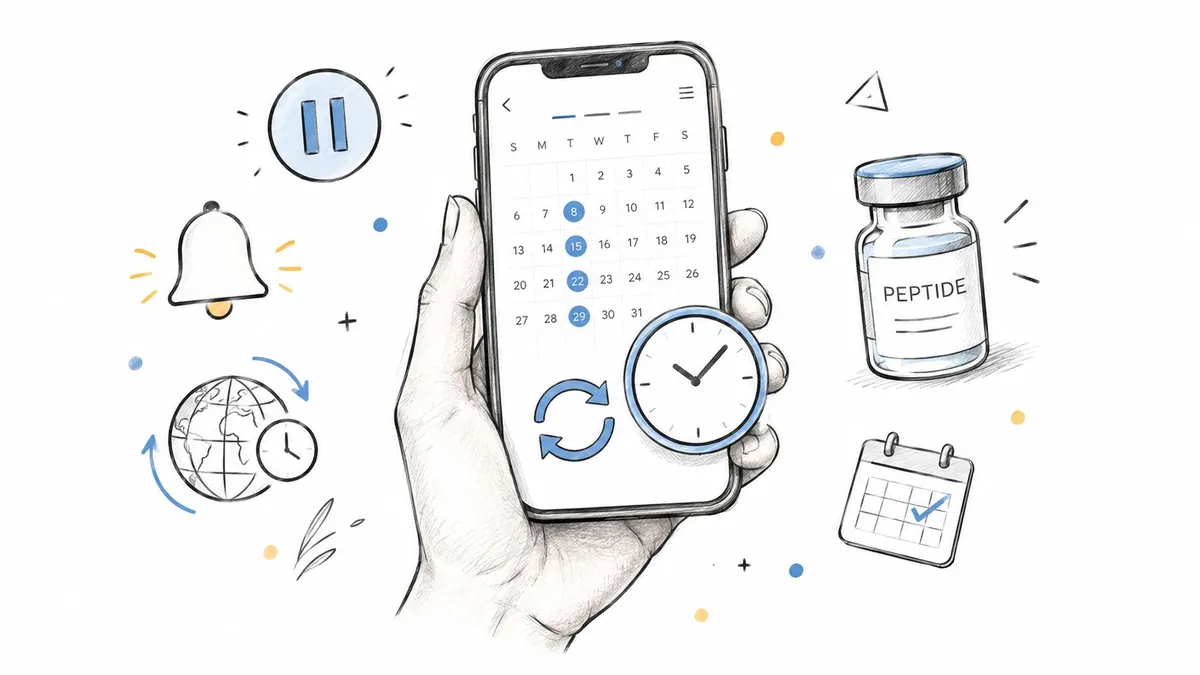
You’ve planned the protocol, prepared the supplies, and set a reminder. Then travel, a late night, or a daylight-saving change shifts the clock, and the schedule no longer matches the plan. A missed dose, an unrecorded pause, or a reminder that arrives at the wrong local time can turn a carefully structured routine into guesswork.
A reliable schedule date and time setup treats each event as more than a notification. It defines the intended date, recurrence, time window, timezone, pause rules, and actual completion state. That distinction matters for anyone managing a structured peptide routine, especially when consistency and accurate records are more useful than relying on memory.
Table of Contents
- Why Scheduling Precision Matters for Peptide Protocols
- Setting Your Start Date and Recurring Frequency
- Configuring Pause Windows and Breaks
- Mastering Time-of-Day and Timezone Settings
- Syncing Reminders and Staying Consistent
- Best Practices for a Sustainable Routine
Why Scheduling Precision Matters for Peptide Protocols

A peptide cycle can drift without a single obvious mistake. A dose is delayed during a commute, a pause is counted from the wrong day, or a reminder appears in the wrong timezone. After several changes, the original plan becomes difficult to reconstruct. That is where a schedule date and time system earns its place: it preserves the intended cadence while showing what really happened.
Medication-timing research explains why reconstruction from memory is unreliable. In inpatient systems, a timing error is commonly defined as administration more than 60 minutes before or after the scheduled time. A systematic review of 23 studies found that these errors could represent up to 72.6% of medication administration errors (National Library of Medicine review). The research covers clinical medication systems rather than personal peptide routines, but the operational lesson applies: every protocol needs a stated timing rule.
Planned time is not completed time
A reliable record separates three states:
- Planned time: when the event should occur.
- Actual time: when the user records completion.
- Allowed window: the range in which the event remains acceptably close to plan.
Keep these values visible rather than replacing one with another. If a dose is logged late, editing the original event to match the later timestamp conceals the deviation. Preserving the planned timestamp, recording the actual action, and marking the difference gives the schedule a usable history. It also supports a clear decision about whether the next event stays anchored to the original cadence.
Pause windows and grace periods matter for the same reason. A pause should identify its start and intended end, while a grace period should define how late an event may be before it requires review. The schedule should also distinguish the user’s local display time from the stored reference time, such as UTC, so travel does not shift future events without notice.
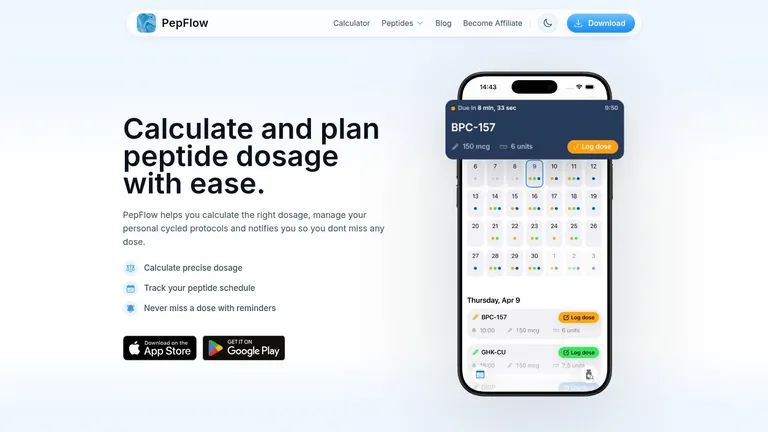
A large audit cited in that same review found that 54.3% of medication orders had at least one administration discrepancy, while 43% had a timing discrepancy. The practical implication is straightforward. A reminder alone does not preserve protocol control. PepFlow’s calendar, countdown, logging action, and schedule history are useful when they show both the commitment and the deviation.
Practical rule: Keep the original event. Log the late action, then decide whether the next event follows the canonical schedule.
The adherence to schedule guide explains why consistent routines support better tracking. PepFlow applies that principle by combining scheduled events, reminders, and a simple log-dose action, making adherence observable instead of something estimated afterward.
Setting Your Start Date and Recurring Frequency
The first schedule date establishes the anchor for everything that follows. Choose it deliberately rather than entering the day you happen to open the app. If the first dose has already occurred, use the actual start date and preserve that history. If the protocol hasn’t begun, select the intended first event and confirm the timezone shown on the device.
Build the base schedule
Use this order when creating a protocol:
- Name the protocol clearly. Use a label that distinguishes the regimen from other routines. Avoid vague names such as “cycle” if you may later compare more than one plan.
- Enter the start date. Treat this as the first planned event, not merely the day you created the record.
- Choose the base frequency. Select the recurrence that matches the written plan, such as daily, every other day, or weekly. Don’t approximate a recurring pattern with a series of unrelated manual reminders.
- Set the cycle length or end condition. Decide whether the schedule ends after a defined period, after a planned number of events, or when you manually close it.
- Review the generated calendar. Check the first several events and the final event before saving. This catches an incorrect weekday, an off-by-one start, or a recurrence that continues beyond the intended endpoint.
The reason for reviewing the generated events is simple. Calendar math can look correct in a settings screen while producing an unintended final date. A visible list of upcoming events gives you something concrete to audit.
Keep frequency separate from dose changes
A recurring frequency answers when an event occurs. It doesn’t determine whether the amount should change, whether a vial should be prepared differently, or whether a protocol is medically appropriate. Keep those decisions separate, and follow the instructions supplied by a qualified healthcare professional.
If you also coordinate work commitments around a routine, a calendar resource such as manage work events easily can help keep personal events and professional obligations visible without forcing you to duplicate the underlying dosing logic. The important point is to maintain one canonical schedule and use other calendars as viewing or coordination layers.
Before saving, compare the planned start with your real life. A first event scheduled during a flight, overnight shift, or known period of poor access is likely to create an early exception. Choosing a realistic starting point is better than correcting several downstream events after the cycle has already begun. The dosing schedule guide offers additional planning context for building a repeatable cadence.
Configuring Pause Windows and Breaks
A pause isn’t an empty space in a calendar. It’s a defined block that changes how the recurring schedule behaves. If the system treats a break as a deleted event, you lose the difference between an intentional pause and a missed dose. If it treats the break as a permanent change to frequency, the resumed schedule may drift from the original cycle.
The cleanest structure is to preserve three layers:
- Base recurrence: the normal pattern before and after the pause.
- Pause interval: the first date and last date on which scheduled events are suspended.
- Resumption rule: whether the next event follows the original cadence or begins from a new anchor.
Define the pause before editing individual events
Suppose a recurring plan has a pause window in the middle. Entering the break as a schedule block tells the calendar that the absence is intentional. Manually deleting each event does the opposite. It creates ambiguity, especially if you later need to determine whether an event was skipped, moved, or never planned.
A pause also needs a boundary convention. Does the pause begin immediately after the last completed event? Does it include the day on which the next event would normally occur? The app should make that interpretation visible, and you should verify the first event after the break rather than assuming the recurrence engine handled it as intended.
A pause should explain why no event appears. A missing event without a reason is a data-quality problem.
Use exceptions instead of silent rewrites
Real routines change. A person may need to extend a pause, resume earlier, or move one event because of travel or an instruction from a clinician. Make the smallest possible change. Adjust the pause block when the entire interruption changes, and edit a single event only when the exception affects one occurrence.
Keep a note or reason for the change where the app permits it. This creates a usable history and prevents a later review from confusing a planned break with non-adherence. Clinical omission studies identify unclear documentation, unavailable doses, and human judgment overrides among common causes of missed administrations, which supports using explicit confirmation and reason codes rather than relying on silent edits (National Center for Biotechnology Information medication omission review).
A pause window also shouldn’t be used to make a medical decision by itself. If a break relates to side effects, treatment instructions, or a change in the substance being used, get appropriate professional guidance. The scheduling tool can preserve the decision and its dates, but it can’t determine whether the decision is safe.
Mastering Time-of-Day and Timezone Settings
A dose scheduled for 8:00 a.m. in one location can appear at a different local hour after travel, even though the underlying event has not changed. That distinction matters during complex peptide cycles, where timezone drift can look like a missed dose, an early dose, or an unexplained gap in the record.
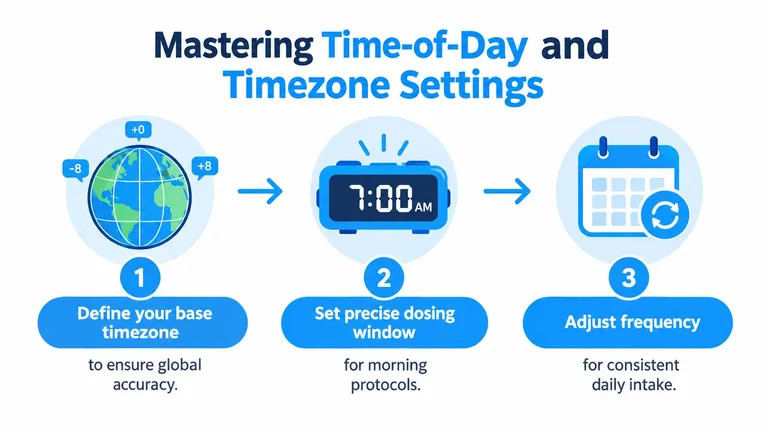
A date identifies the calendar day. A time of day identifies the intended clock time. A timezone determines how that time is displayed across devices and locations. Set these variables separately before creating a recurring schedule.
First decide whether the routine follows a local clock time or an absolute moment. A morning routine usually follows local time, so travelling users may still want the event to appear in the local morning. An event tied to one precise instant should use an absolute timestamp instead.
Choose the right storage model
Recurring events that should preserve a local clock time need timezone rules attached to them. The schedule can then account for daylight-saving changes instead of applying the same fixed offset every day. A fixed-time event can often use UTC storage because its meaning is tied to one instant rather than local clock behavior. CalConnect’s guidance explains why recurring events crossing daylight-saving changes require correct timezone information and why UTC may suit fixed-time events (CalConnect timezone recommendations).
A practical implementation should:
- Store the canonical timestamp with the user’s locale and timezone.
- Render the event in the user’s current local zone.
- Display the timezone when the user confirms the event.
- Compare the completion log with the canonical timestamp.
- Keep the original timestamp when the user records an early or late completion.
This separates the scheduled event from what happened. It also prevents a daylight-saving change or phone setting from being mistaken for an intentional protocol change. Compliance data from dose-timing studies is easier to interpret when the record distinguishes the planned moment, the user’s local display, and the recorded completion.
Make the window visible
A narrow window may suit a routine that depends on a consistent clock time. A wider grace period may work better when sleep, work, or travel makes an exact minute unrealistic. Define the window explicitly. “Morning” and “evening” leave too much room for inconsistent interpretation, while a visible start, end, and local timezone give the user a clear basis for logging.
Manual timezone conversion creates avoidable errors, particularly when software hides whether it is showing local time, UTC, or the timezone attached to the original event. The app should expose that conversion instead of making the user calculate it. After travel or a device timezone change, confirm the base timezone, review the next scheduled event, and check whether the grace period still matches the intended routine.
For broader calendar setup and confirmation practices, see the Recepta.ai Google Calendar guide. In PepFlow, use the next-event view to verify the local time, then use a countdown timer to date as a second check against the calendar’s scheduled moment. Record the actual completion separately from the planned time so a late event remains visible rather than silently rewriting the schedule.
Syncing Reminders and Staying Consistent
A schedule can be mathematically correct and still fail at the moment of action. The reminder may arrive while the phone is locked, the event may be buried beneath unrelated notifications, or the user may dismiss it without recording what happened. The support layer needs to reduce those points of friction.
Configure reminders around the behavior you follow:
- Primary alert: Set it for the intended dosing time or defined window.
- Secondary prompt: Add a later reminder only if it helps distinguish an uncompleted event from a dismissed notification.
- Live activity: Use a persistent countdown when seeing the remaining time is more useful than receiving another alert.
- Home screen widget: Put the next event where it can be checked without opening several screens.
- Log action: Record completion immediately, while the actual time is still clear.
Treat the log as evidence
A notification isn’t proof that an event happened. The log should show whether the user completed, skipped, postponed, or rescheduled it. If the app supports a simple log-dose action, use it at the point of completion rather than batching several entries later.
Review history for patterns, not for self-criticism. Repeated late events may point to a time that conflicts with commuting or training. Repeated omissions may indicate that supplies aren’t ready, the reminder is too easy to dismiss, or the schedule needs professional review. The solution isn’t always a stronger notification. Sometimes it’s a better event time or a clearer confirmation step.
A reminder asks you to act. A log tells you what actually happened. You need both.
If you coordinate several routines, avoid creating competing reminders in multiple calendar systems unless each one has a clear purpose. Use the dosing app as the source for protocol state, and use external calendars for visibility where necessary. Guidance on building a practical follow-through reminder system can help when notifications need to support a broader daily workflow.
A useful escalation rule is to respond to repeated misses rather than endlessly adding alerts. After one exception, record it. After a pattern, investigate the cause. If the reason involves symptoms, treatment changes, or uncertainty about what to do next, pause the scheduling decision and consult a qualified professional.
Best Practices for a Sustainable Routine
A basic setup uses a start date, one recurring frequency, a time-of-day setting, and a single reminder. It’s quick and easy to maintain, but it offers less detail when a pause, timezone change, or late event occurs.
An advanced setup adds explicit pause windows, a defined grace period, visible timezone handling, secondary prompts, and detailed history. It requires more initial configuration, but it gives you better control over exceptions and makes schedule drift easier to identify. Review the upcoming calendar regularly, back up important records where possible, and never compensate for a missed event without appropriate professional guidance.
The app provides structured protocol scheduling, pause periods, reminders, countdowns, widgets, and simple dose logging so your date-and-time plan remains visible in daily life. Set your recurrence, confirm the timezone, define how exceptions should be handled, and visit PepFlow to build a more accountable routine.