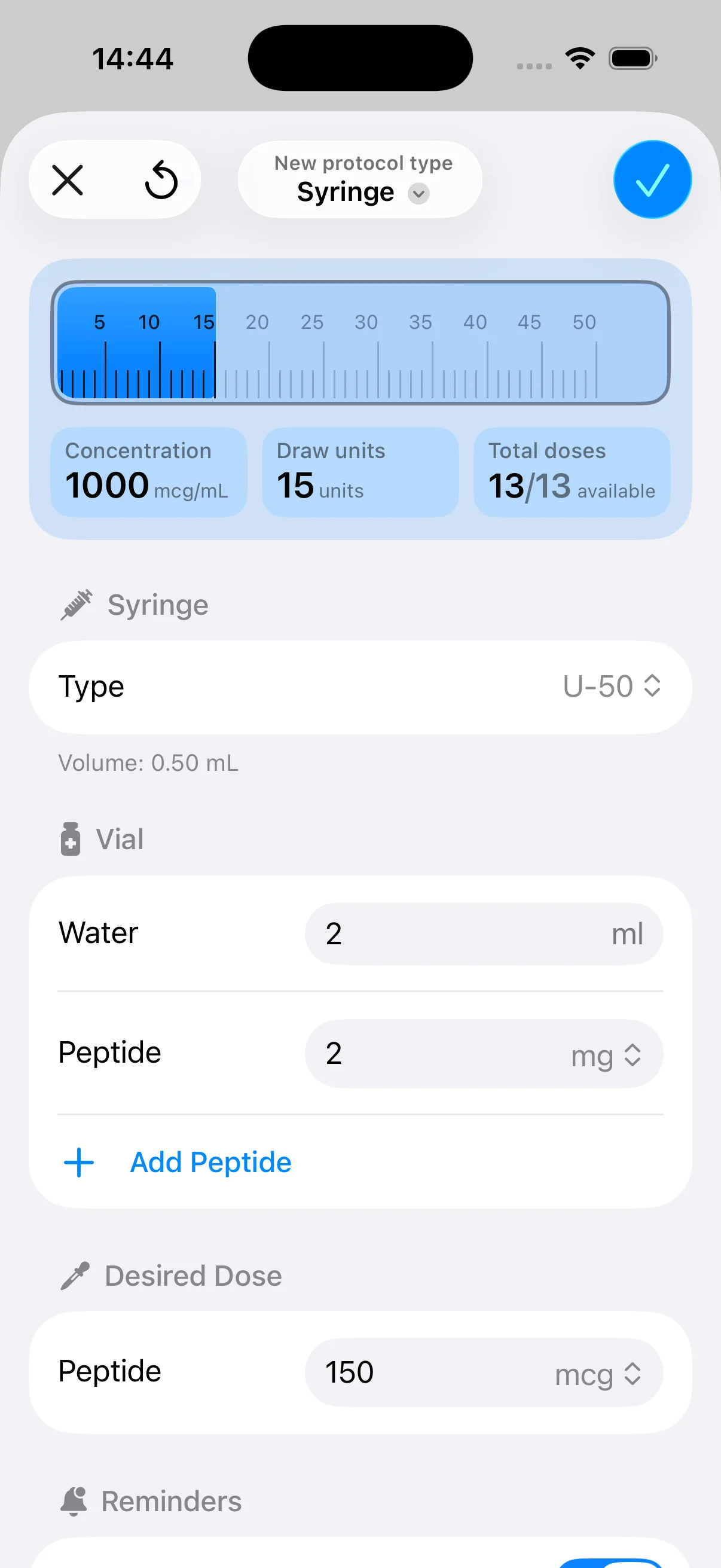
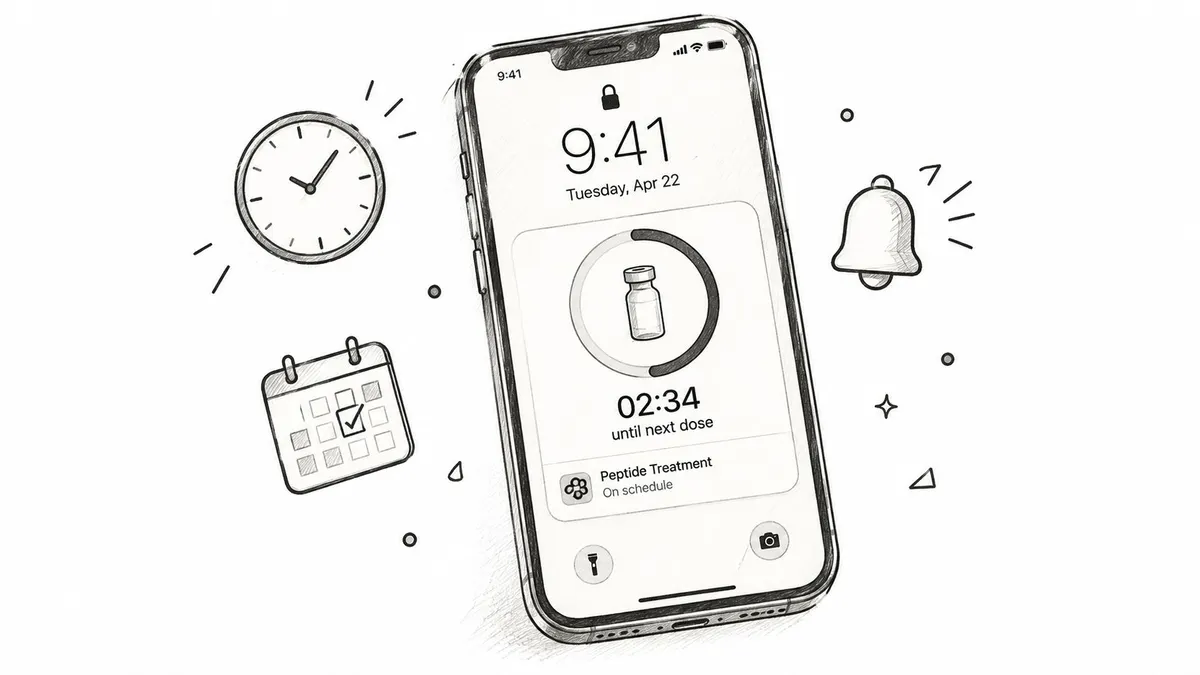
A live activity feed is an Apple iOS surface that shows real-time or frequently updated status on the Lock Screen and Dynamic Island without opening the app, and an activity can remain available for up to 12 hours, with up to 8 hours of active tracking. For peptide adherence, that turns an invisible timer into a visible, glanceable cue that can help reduce missed doses.
You’re halfway through a workday, your training session ran late, and a routine phone notification disappeared under messages, calendar reminders, and background noise. Later, you realize the dosing window has passed. The problem may not be motivation or discipline. You didn’t have the right status in view at the right moment.
That’s where a live activity feed becomes useful. Instead of sending one alert and disappearing, it keeps an active status surface on your iPhone so you can check what’s due without opening the app. For a structured peptide routine, that might mean seeing the next dose, a countdown, or a dose-log status while your phone is on the desk or in your hand.
Table of Contents
- What Happens When a Peptide Dose Slips Your Mind
- Why Peptide Dosing Needs Visible Timing Cues
- How PepFlow Uses Live Activities and Widgets
- What Makes Live Activities Different from Regular Notifications
- When a Live Activity Feed Helps and When It Hurts
- Static Reminders, Push Notifications, and Live Feeds Compared
- Recommended PepFlow and iOS Settings for Reliable Updates
- Building a Peptide Adherence Routine That Actually Sticks
What Happens When a Peptide Dose Slips Your Mind
You’ve planned the day carefully. Work begins early, training takes up part of the afternoon, and a peptide protocol adds another time-sensitive task. A notification appears while you’re answering a message. You swipe it away, intending to return to it, then move into the next meeting or workout.
By evening, the reminder is gone from immediate view. You may remember that a dose was due, but not whether you logged it, whether the timing window has closed, or what action comes next. That uncertainty creates friction at exactly the point when a simple, visible cue could have helped.

The status stays in your periphery
Apple describes Live Activities as a way to track the progress of an activity, event, or task at a glance on the Lock Screen. The feature became public during the iOS 16.1 release cycle in late 2022, after Apple introduced support in beta on July 27, 2022 and published developer guidance on October 10, 2022. You can review the feature’s design principles in Apple’s Live Activities documentation.
For peptide adherence, the important distinction is persistence. A regular notification asks for attention once. A live activity feed keeps the current state available, so you can see whether a protocol is waiting, active, paused, or recently logged without reconstructing the situation from memory.
That doesn’t automate judgment or replace professional guidance. It just places the next relevant action closer to your normal phone habits.
Practical rule: Use the live activity as a visible status cue, not as proof that a dose is medically appropriate.
Apple’s documentation and third-party coverage describe a Live Activity as lasting up to 12 hours total, divided between up to 8 hours of live tracking and up to 4 additional hours in an inactive state. That makes the surface a good fit for an active dosing window, but not a permanent record of an entire protocol.
Why Peptide Dosing Needs Visible Timing Cues
A peptide routine can contain several moving parts: a planned amount, a preparation step, a recurring schedule, and sometimes a pause before the next cycle. Even when the protocol itself is simple, the user still has to connect a time, an action, and a record. A silent reminder handles only part of that chain.
Memory performs poorly when the same action competes with work, exercise, travel, and ordinary phone use. A persistent visual cue lowers the need to remember the task unaided. You see the status, decide what it means, and then open the app or follow your established process when action is appropriate.
That’s especially relevant when a routine contains repeated injections or changing intervals. A notification that says “Reminder” may be easy to dismiss because it provides little context. A live activity can communicate more useful state, such as a next-dose countdown or whether the previous action has been logged.
Visibility changes the decision
The benefit isn’t that the phone becomes a medical supervisor. The benefit is that timing becomes externalized. Instead of asking yourself, “When was I supposed to do that?” you can check a current status surface and then verify the details inside the app.
This also helps separate three actions that people often blur together:
- Seeing the schedule: Confirm what the protocol says is next.
- Taking action: Follow the instructions and professional guidance that apply to you.
- Logging the result: Record what happened rather than relying on memory later.
Live Activities gained meaningful familiarity beyond early novelty. In a September 2023 consumer survey summarized by Business of Apps’ coverage of Live Activities adoption, 41% of respondents said they had tried the feature, 35% had not tried it, and 24% were unaware of it. Among people who had tried it, 62% rated the experience “Good” or “Exceptional,” while 6% rated it “Poor” or “Bad.”
Those figures describe general consumer experience, not peptide adherence outcomes. They do suggest that a glanceable status surface can feel natural when it presents information people actually need.
How PepFlow Uses Live Activities and Widgets
The practical setup works best when each notification layer has a defined job. A push notification can call attention to an event. A widget can provide a broader snapshot. A Live Activity can keep one active status visible while the relevant dosing window is in progress.
For a cycled protocol, that distinction matters. A routine may have a flexible start date, recurring dosing frequency, and pause periods. The user doesn’t need an endless stream of alerts. They need the current state to remain understandable.
What appears on the phone
A coordinated reminder system can present:
- The next scheduled action, so you know what the current countdown refers to.
- A time or status indicator, so the active window doesn’t vanish after one dismissed alert.
- A simple log action, so the completed dose can be recorded close to the time it occurred.
- A widget view, so the broader schedule remains available even when no Live Activity is active.
That’s different from leaving the main app open all day. The user can glance at the Lock Screen or Dynamic Island, then open the app only when more detail or a dose log is needed.

A countdown is most helpful when it answers a specific question. “What is happening?” is better than a decorative animation. “When is the next scheduled action?” is better than an indistinct badge. “Has this been logged?” is better than asking the user to remember what happened earlier.
For a more detailed explanation of date-based countdown logic, see this guide to using a countdown timer to a date. The same principle applies here: the interface should turn a date or interval into a clear, actionable status without forcing repeated manual calculations.
Keep the surface conservative
A sensible design doesn’t expose every protocol detail in a public-facing or crowded notification. The Lock Screen can be visible to other people, and a Dynamic Island can be seen at a glance. A privacy-conscious display should therefore favor neutral status language over unnecessary health or compound details.
PepFlow is an iOS app that combines dose planning, reminders, countdowns, widgets, Live Activities, and dose logging for people organizing structured peptide routines. It focuses on planning and organization, not medical advice, and the user remains responsible for confirming the protocol with an appropriate professional.
What Makes Live Activities Different from Regular Notifications
A Live Activity isn’t a small version of the app running continuously. It’s a separate, widget-based surface. Apple’s architecture uses WidgetKit and SwiftUI for the interface, while the main app or server updates the state through ActivityKit and APNs, as described in Apple’s ActivityKit documentation.
That separation explains both the usefulness and the limitations. The Live Activity target has no direct networking of its own. It depends on state shared by the main app or on push updates, so the interface can’t behave like a live bidirectional dashboard that independently fetches fresh information every moment.
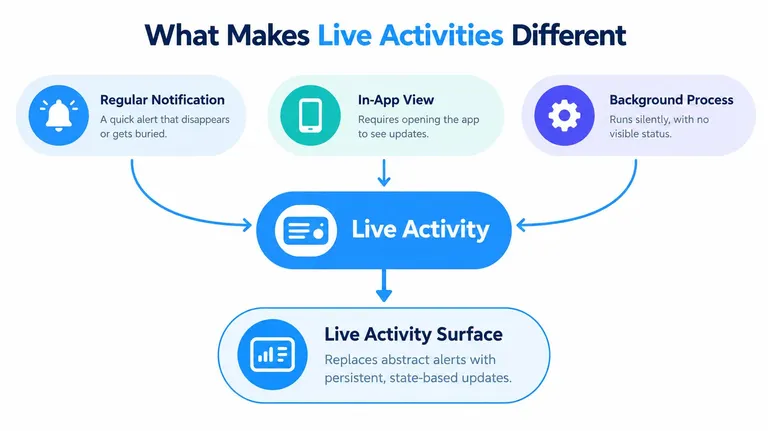
Four surfaces, four jobs
A regular notification interrupts or calls attention to a moment. It’s useful when the user needs a prompt, but it can disappear into notification history.
An in-app view can show detailed history, settings, calculations, and protocol context. It offers depth, but the user has to open the app.
A background process performs work outside the visible interface, subject to system rules and available resources. It isn’t the same thing as a screen the user can inspect.
A Live Activity surface sits between those experiences. It shows selected state at a glance, but it still relies on explicit updates and system-managed lifecycle behavior.
This is why a countdown may stop, lag, or show an older state. The issue can involve an invalid activity token after dismissal, a mismatch between activity identifiers and content state, an app termination, or a delivery problem caused by network or device conditions. A strong product needs clear recovery behavior rather than assuming the surface will update forever.
A Live Activity is a state display with an update pipeline. It isn’t an always-current feed by default.
For adherence, that distinction is healthy. The visible surface can reduce forgetfulness, while the app remains the place to verify the schedule, review history, and resolve anything that looks inconsistent.
When a Live Activity Feed Helps and When It Hurts
More visibility isn’t automatically better. A status surface helps when it answers a current question with minimal distraction. It hurts when it exposes sensitive information, sends updates the user didn’t request, or creates the impression that the displayed state is more reliable than it really is.
A peptide routine needs discretion. Someone else may see the Lock Screen. A coworker may notice the Dynamic Island. The safest display may show a neutral countdown or “next action” label rather than a compound name, dose amount, or health objective.
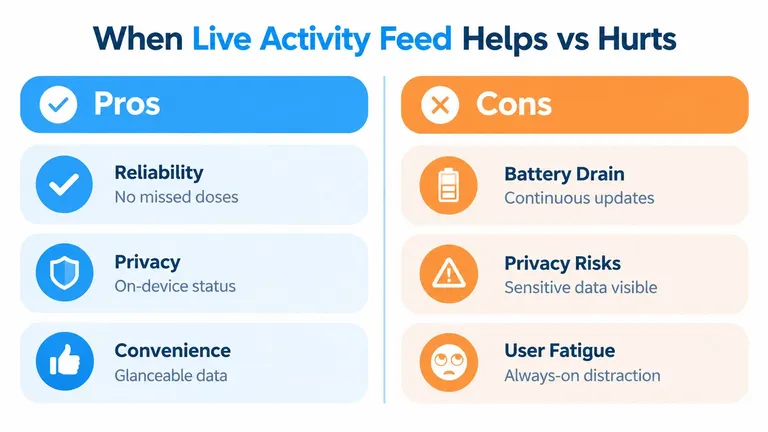
Consent matters more than constant activity
Apple’s platform rules and independent guidance make unsolicited marketing an inappropriate use of Live Activities. A health-related app should be even more restrained. The user should start the status surface intentionally, understand what it displays, and be able to stop it when the active window ends.
Community complaints about Live Activities also point to practical concerns, including unwanted alerts, information appearing at inconvenient times, and content bypassing expectations created by Focus settings. A feature can work technically and still damage trust if it feels noisy.
Use a live activity feed when:
- The user has an active time-sensitive task and benefits from seeing its current state.
- The displayed information is narrow, such as a countdown or neutral status.
- The user can dismiss or stop it, without losing access to the underlying schedule.
- The app has a recovery path, such as reopening the app to confirm a stale or missing update.
Prefer a standard reminder or in-app log when the information is sensitive, non-urgent, or unlikely to change during the current window. The objective isn’t maximum screen presence. It’s dependable visibility with the smallest reasonable privacy cost.
Apple’s lifecycle rules reinforce that conservative approach. A Live Activity can run for up to 8 hours, then end on the Dynamic Island while remaining on the Lock Screen for up to 4 additional hours, for a maximum of 12 hours. Apple also supports remote updates through APNs, and iOS and iPadOS 18 added broadcast push notifications that let one server send a single update to many devices, as explained in Apple’s Live Activity update documentation.
Static Reminders, Push Notifications, and Live Feeds Compared
The right reminder layer depends on what the user needs at that moment. A historical record shouldn’t compete with an active dosing window, and an urgent prompt shouldn’t be buried in a dashboard.
| Reminder Type | Visibility | Intrusiveness | Best For |
|---|---|---|---|
| Static reminder | Available when you open the schedule or calendar | Low | Reviewing planned dates and maintaining a long-term record |
| Push notification | Appears as a direct prompt at a scheduled moment | Medium to high, depending on settings | Calling attention to a dose or action that needs a decision |
| Live activity feed | Remains visible as a selected current status on the Lock Screen or Dynamic Island | Moderate, because it stays in view without repeated alerts | Monitoring an active dosing window, countdown, or pending log |
A static reminder is the quietest option. It works well for checking a protocol before the day begins or reviewing what happened in the past. Its weakness is that it depends on the user opening the relevant screen.
A push notification is more direct. It can help when the user needs a prompt at a particular time, but a single alert doesn’t necessarily communicate whether the task is still pending. It also may be silenced by notification settings or overlooked during a busy period.
A live activity feed fills the middle ground. It doesn’t need to interrupt the user repeatedly, but it keeps one selected state visible. That makes it appropriate for the active portion of a routine, not for every historical event or every piece of protocol information.
Choose by task, not by novelty
A useful pattern is to combine the layers:
- Use the schedule to plan and review.
- Use push notifications to call attention to a due action.
- Use the Live Activity to keep the current status visible.
- Use the log to create a reliable history.
A focused injection reminder app can bring those functions into one workflow, but the user should still decide which alerts are appropriate for their environment and privacy needs.
Recommended PepFlow and iOS Settings for Reliable Updates
A Live Activity can only help if the iPhone allows the app to display and update it. Start with the system settings, then test the experience during an active protocol window rather than assuming the setup is correct.
Check the iPhone first
Open the app’s notification settings and confirm that notifications are allowed. Look for the Live Activities option if it’s available for the app, and review whether previews display sensitive content on the Lock Screen.
Then check Background App Refresh. Live Activities don’t operate as ordinary continuously running app screens, but the broader reminder workflow may still depend on the app being able to refresh and share state appropriately. If you’ve enabled Low Power Mode, test whether updates arrive as expected, because power-saving behavior can change the timeliness of background activity.
Focus modes deserve a deliberate review. You may want dose-related prompts to reach you during a training block or work session, but you may also prefer a quieter display overnight. Configure the allowed notifications and people carefully, then confirm that the chosen mode matches your actual routine.
Run a simple reliability test
Use this checklist before depending on the surface:
- Start with a current schedule: Confirm the date, time, frequency, and pause period inside the app.
- Allow the relevant notifications: A blocked prompt can make a healthy status workflow look broken.
- Pin the active Live Activity: Verify that the countdown or status appears on the Lock Screen or Dynamic Island.
- Log a test action: Check that the displayed state changes after the action is recorded.
- Reopen the app after a failure: Compare the app’s detailed state with the surface if the feed looks stale.
- Keep the app installed: Removing or reinstalling it can interrupt the relationship between the schedule and active status.
Don’t treat a missing Live Activity as evidence that the schedule disappeared. It may have been dismissed, expired, or blocked by a setting. The app’s detailed schedule and history should remain the source for verification.
Building a Peptide Adherence Routine That Actually Sticks
Reliable adherence comes from a small system, not from one attractive interface. You need a clearly defined protocol, a schedule you understand, a visible cue at the right time, and a record that shows what happened.
A Live Activity is strongest at the visibility step. It can keep an active countdown or neutral status close at hand, but it won’t decide whether a protocol is appropriate, compensate for an incorrect setup, or eliminate the need to check details. Treat it as a status surface, not a substitute for planning or professional guidance.
Build around your real day
Choose a display that fits your environment. If privacy is a concern, use neutral wording and limit Lock Screen previews. If notifications create fatigue, reserve the Live Activity for active dosing windows and rely on the schedule for everything else.
When a status looks wrong, resolve the mismatch before taking action. Check the app, review the schedule, and confirm the last logged event. A cautious pause is better than acting on an outdated countdown.
You can also use an adherence-to-schedule workflow to make the routine more deliberate. The purpose is simple: reduce the number of decisions you have to reconstruct from memory while preserving your control over what is displayed and when.
The most useful mindset is practical rather than optimistic. Let the live activity feed handle visibility, let push notifications handle timely attention, let widgets provide context, and let the app history preserve the record. That division keeps the technology helpful without asking it to become a medical authority.
PepFlow combines peptide schedule planning, dosage calculations, reminders, Live Activities, widgets, and dose logging in one iOS workflow. If you want a more visible and privacy-conscious way to manage active dosing windows, visit PepFlow and review how it can fit your routine.