Your iPhone lights up with a dose reminder while you’re making dinner. You dismiss it, finish what you’re doing, and later can’t remember whether you took the medicine or only meant to. Another alert won’t resolve that uncertainty. A clear, timestamped dose log might.
Choosing a medication reminder app for iOS starts with that distinction. Look beyond how an app sends notifications and check what happens when you’re late, deliberately pause a routine, or aren’t sure what you took.
Table of Contents
- What a Medication Reminder App Does and Does Not Do
- Core Features to Check Before You Download
- Matching Schedules and Dose Units to Your Routine
- Common Reminder Problems and How to Fix Them
- Privacy, Health Data and Where Your Records Live
- Choosing an App for Your Goal
- Set Up Your First Reminder Schedule Today
What a Medication Reminder App Does and Does Not Do
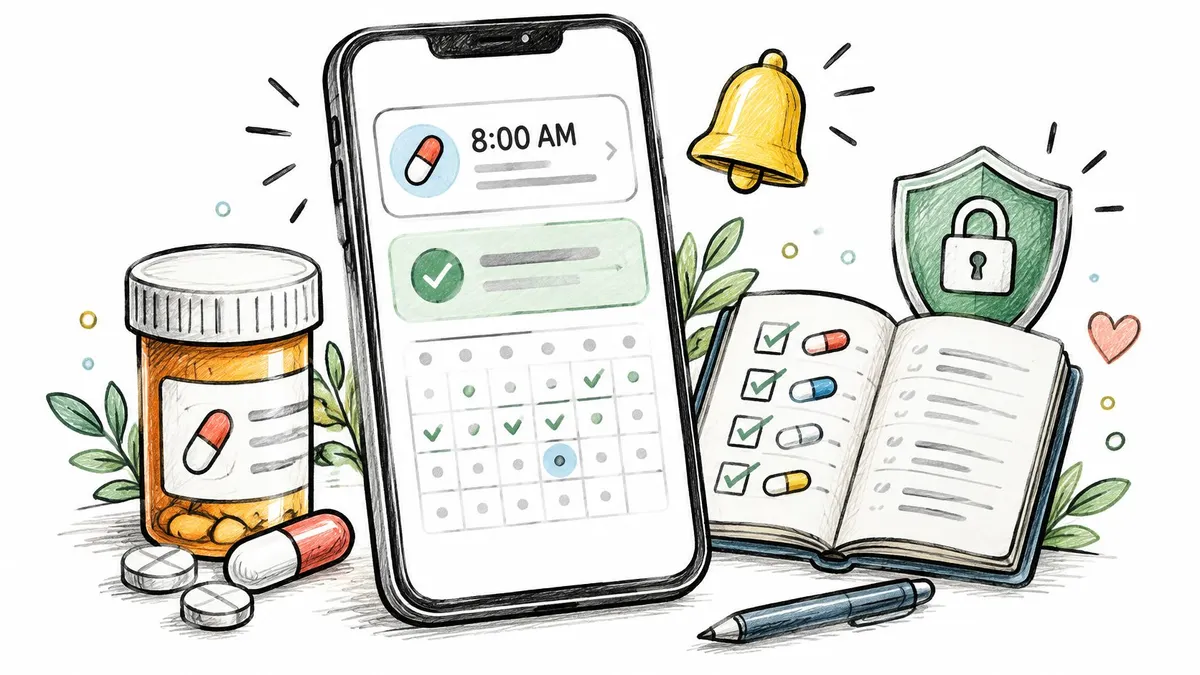
A reminder app is like a smoke alarm plus a logbook. The alarm draws your attention to something that needs action. The logbook records your response. Neither can perform the action for you.
A medication app generally has three jobs:
- Store your routine. You enter the medicine, the prescribed amount, and the timing.
- Prompt you to act. The app schedules notifications around those instructions.
- Record your response. You log what happened, then review the history when needed.
These tools are worth considering. A 2025 systematic review and meta-analysis, published in the Journal of Medical Systems, included 26 studies with 5,174 participants and found that mobile-app interventions improved medication adherence, with an odds ratio of 2.371. That finding supports app-based assistance, not a promise that any particular app will work for every person.
The practical distinction is easier to see when the written plan, reminder, and record sit alongside each other.

What the log actually proves
A delivered notification shows that your phone presented a prompt. A taken entry records what you say you took. Neither independently verifies administration, so an app shouldn’t treat a dismissed notification as a completed dose.
That distinction becomes important when a family member asks whether you’ve taken something or your clinician wants to understand gaps in your routine. An unresolved entry is more honest, and more useful, than an automatically completed one.
Practical rule: Mark a dose as taken only after taking it, not when you intend to take it.
An app also can’t diagnose a condition, choose your medicines, or determine a medically appropriate dose. PepFlow is a tracking and planning tool and doesn’t replace medical advice.
For people managing ongoing conditions, Core Nursing Solutions’ chronic care guide offers broader context for care beyond the phone. Keep your prescriber’s or pharmacist’s instructions as the reference, and use the app to organize those instructions rather than reinterpret them.
Core Features to Check Before You Download
A reminder appears while you’re busy, but you may not be able to act on it until later. The app should let you record what happened afterward, with a clear difference between a prompt and evidence of a dose.
Apple’s built-in Medications feature supports custom schedules and can prompt you again when a scheduled dose hasn’t been logged. Check its settings for the current follow-up timing. A third-party app should offer a clear advantage for your routine, not just another notification.
Core features to screen before downloading
| Feature | What to check | Why it matters | Priority |
|---|---|---|---|
| Scheduling | Fixed times, elapsed-hour intervals, weekdays, start and end dates | The reminder must match the real timing of the routine | Must have |
| Cycles and pauses | Pause periods, cycle end dates, restart dates | Stops false reminders during breaks | Must have for cycled plans |
| Follow-up alert | A prompt if no dose is logged, with timing you can check or configure | Helps an unresolved dose get noticed | Must have |
| Dose logging | Taken, late, skipped and snoozed states | Separates a prompt from a record | Must have |
| Dose history | Timestamped entries that can be edited | Shows what was actually logged | Must have |
| Unit handling | mg, mcg, mL and units, with compatible conversion | Helps prevent confusion between different measurements | Important |
| Refill and inventory | Supply count and estimated run-out date | Helps you plan replenishment | Nice to have |
| Widgets and Live Activities | Next dose visible and quick logging | Makes daily checking easier | Nice to have |
| Health app connection | Optional, clearly explained read and write access | May avoid double entry but adds permissions | Optional |
| Export and sharing | PDF or CSV history report | Supports preparation for clinician visits | Nice to have |
Check what each status means
Snoozed means the prompt was postponed, not that the medicine was taken. Skipped should mark an event you deliberately didn’t take. Late should preserve the actual time you record, rather than replacing it with the scheduled time.
A useful app also gives you a way to record held or uncertain doses, either with dedicated statuses or clear notes. That keeps a planned hold distinct from a missed reminder, and prevents an uncertain dose from being logged as taken just to clear the screen.
For most daily routines, reject an app that lacks a must-have capability. Among suitable options, compare conveniences such as widgets, inventory, and export. Choose a readable dose history over a longer feature list.
Matching Schedules and Dose Units to Your Routine
For a fixed daily routine, the app needs a clock time, dose value, unit, and start date. Enter those from your established instructions. If the label and the written plan disagree, resolve that with your pharmacist before saving either version.
Other routines require different scheduling logic. A weekday picker can represent selected days, but it can’t necessarily represent an elapsed-time interval or an alternating-day sequence.
Common schedule patterns and what the app must handle
The examples below are hypothetical scheduling tests, not recommended regimens.
| Pattern | Example | What the App Must Handle |
|---|---|---|
| Fixed daily | Every morning at the prescribed time | One recurring clock time |
| Interval | Every 8 hours | Reminders follow elapsed time, not just named clock times |
| Weekly | Monday and Thursday | Separate day selection for each dose |
| Alternate day | Every second day | Counts day offsets, not weekday names |
| Cycle with off weeks | 8 weeks on, 4 weeks off | End date and restart date |
| Titration | A prescribed step up every 2 weeks | A user-entered dose value for each step |
| Time zone change | Travelling east for a week | Explicit local-time or home-time behavior |
Before entering a complicated routine, write it out using a medication schedule template. Check the first event, the last event, and the first event after any break. Those boundaries often reveal a setup mistake more clearly than the calendar’s middle.
Keep dose amounts separate from preparation details
Mass, volume, and syringe markings aren’t interchangeable. Compatible conversion can express the same amount in different units, but converting a volume into a medicine amount requires the correct concentration. A syringe marking alone doesn’t establish a dose.
For a hypothetical tablet example, suppose a pharmacist has confirmed that half of a labelled tablet is the prescribed amount. Record the tablet strength and the prescribed fraction clearly, rather than inventing a new product strength. Don’t assume every tablet can be split.
On iPhone and iPad, our tracking supports compatible unit conversion, user-configured titration steps and ramps, inventory calculations, and run-out estimates. Users supply the values. A titration feature stores an established progression; it doesn’t decide when you should increase treatment.
For households using physical organizers alongside phone reminders, Cream Home Care’s guidance on helping families manage medicines at home provides useful context for keeping those systems aligned.
Consider a hypothetical Monday-and-Thursday plan with Monday’s dose logged late in the evening. A fixed weekday schedule should preserve Thursday’s planned event unless your established instructions say otherwise. An interval schedule may behave differently, so inspect the next occurrence before saving. Changing the app’s timing logic isn’t a substitute for getting missed-dose advice.
Common Reminder Problems and How to Fix Them
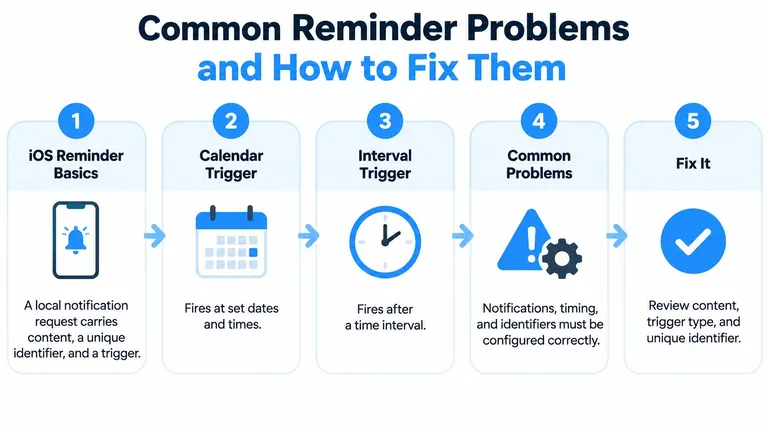
iOS doesn’t guarantee notification delivery. According to Apple’s UserNotifications documentation, an app can schedule local notification requests containing content, a unique identifier, and a trigger; iOS can present them while the app is closed or running in the background.
Calendar triggers use dates and times. Interval triggers use elapsed time. After a schedule edit, the app should cancel obsolete requests and create replacements rather than leave both active.
This flow illustrates how the notification request connects to troubleshooting.
Reminder symptoms, causes and fixes
| Symptom | Likely Cause | Fix |
|---|---|---|
| No reminder appears | Notifications are off or Focus silences the app | Allow notifications and add the app to the relevant Focus allow list |
| Reminder arrives late | Delayed presentation or an app that relies on background work | Check delivery settings and Notification Center; test local reminders and follow-up alerts |
| Duplicate reminders after an edit | Old requests weren’t cancelled | Use the app’s reminder reset or rebuild option; preserve the history |
| Dose logged on the wrong day | Time zone change or late entry | Correct the actual administration timestamp in history |
| Next dose shifts after a late log | Interval reminders recalculate from the log | Check the intended schedule anchor; use fixed times only if they match your instructions |
| Reminder returns during a pause | The pause wasn’t stored in the schedule | Enter the planned end and restart dates, then inspect upcoming events |
Don’t assume Low Power Mode explains every missing alert. First distinguish a notification that wasn’t scheduled from one that was delivered without sound or hidden by your settings. A repeat alert can help you notice an unresolved event, but it won’t repair an incorrect schedule.
The video below provides an additional visual reference for reminder setup.
Test the complete workflow
Create a clearly labelled test event shortly ahead, lock the phone, and check both the alert and its logging action. Repeat after major schedule changes, then remove the test record so it doesn’t resemble a real dose.
Our guide to improving medication adherence addresses the broader routine around those prompts. Reminders and logs support organization; they don’t guarantee adherence, safety, or treatment effectiveness.
Privacy, Health Data and Where Your Records Live
Do I have to connect Health? No. An app can use a manually entered schedule and local notifications without accessing your Health records. Whether a particular app allows that workflow should be clear before you grant permissions.
Separate the possible data paths. Device storage keeps entries within the app on your phone. Sync transfers selected information between devices through a service. Health access allows an app to interact with permitted Health data types. These aren’t the same permission or the same storage arrangement.
Apple’s Health app information describes encrypted Health data, user-controlled sharing, and permissions for individual data types. Its HealthKit Medications API gives compatible apps opportunities to use medication data, which makes the purpose of each request worth examining.
A permission checklist
- Necessity. Can you create reminders without connecting Health?
- Permission denial. Which features remain available if you decline access?
- Read versus write. Does the app need to view existing entries, save new ones, or both?
- Lock-screen exposure. Can someone nearby see medicine names or protocol details?
- Backups and sync. Does the history leave the device, and through which service?
- Export and deletion. Can you retrieve a useful copy and remove records you no longer want stored?
In PepFlow, most information users enter is kept on their device or synced through Apple services. Protocols and settings sync across devices using Apple’s CloudKit, which is fully encrypted and stores data on Apple’s infrastructure. That’s distinct from granting Health access.
Convenience has a privacy cost
A widget can make your next event easier to check while also making sensitive information easier for someone else to see. Hide notification previews where appropriate, and inspect widgets and Live Activities separately. Hiding one display doesn’t necessarily hide every other display.
An exported report also becomes a separate copy. Review its contents and recipient before sending it, especially when a full protocol history contains more than a clinician needs for a particular conversation.
Choose the smallest amount of data sharing that makes your routine workable.
Use the medication tracker app guide to assess the recording workflow alongside permissions. Manual entry offers direct control over what you enter; sync and Health integration can reduce repetition. Make that trade-off deliberately rather than approving every request during setup.
Choosing an App for Your Goal
Start with what you need to accomplish. Someone who wants a single prompt has a different problem from someone organizing pauses, several schedules, or a history for clinical review.
Quick pick by user goal
| User Goal | Must-Have Features | Skip the App If |
|---|---|---|
| Occasional single medicine | One-time reminder with follow-up | Setting up one reminder requires an account first |
| Fixed daily routine | Fixed times, follow-up alert, dose history | Reminders can’t be recreated after an edit |
| Cycled or paused plan | Cycle end dates, pause periods, restart dates | Every pause has to be rebuilt by hand |
| Several medicines or doses | Per-item schedules, one-screen view, widgets | It can’t distinguish each item’s schedule and status |
| Caregiver support | Shared access or a second notification target | Data is locked to a single user |
| Clinician visits | Exportable, timestamped dose history | History can’t be exported |
| Peptide routine with manual tracking | Unit handling, user-configured titration, inventory, dose log | It presents a dose as advice without user confirmation |
Is Apple’s built-in option enough?
For a straightforward medicine on a fixed daily schedule, Apple Medications is a sensible starting point. Try its scheduling and logging workflow before assuming you need another download.
Consider a third-party app when your actual plan requires more suitable cycle handling, separate schedules, compatible unit conversion, inventory estimates, or export. Test those capabilities rather than assuming that a dedicated app handles every complex situation better.
A 2022 systematic review of free diabetes medication apps in JMIR Diabetes found that 25% promoted high adherence, 25% moderate adherence, and 50% low adherence. Those categories describe the reviewed apps, not your likely treatment outcome. They’re a reason to examine practical support rather than trust reminder-related marketing.
For caregiver-assisted use, Velma’s discussion of phone reminders for daily medications is a useful companion to testing the interface together. Have the person using the phone demonstrate logging, correcting an entry, and finding an unresolved event.
Choose manual tracking for an established plan
A peptide tracker should fit someone who already has instructions to record, not someone looking for the app to prescribe a routine. On iPhone and iPad, we focus on tracking: users independently record dose details and optional preparation and syringe information. Preparation information doesn’t generate a medication dose or syringe draw.
Selection test: Choose the app that preserves an honest record when your day doesn’t go to plan.
If you’re uncertain whether you administered a dose, don’t take another merely to make the app’s status look complete. Check the medicine’s instructions and get pharmacist or prescriber guidance about the uncertainty.
Set Up Your First Reminder Schedule Today
Have your current label and written instructions beside you before opening the app. If someone helps manage your medicines, complete setup together so you agree on who records administration and who only checks the history.
Use a clearly marked demonstration entry for practice. Don’t create false taken records inside your real medication history just to test the buttons.
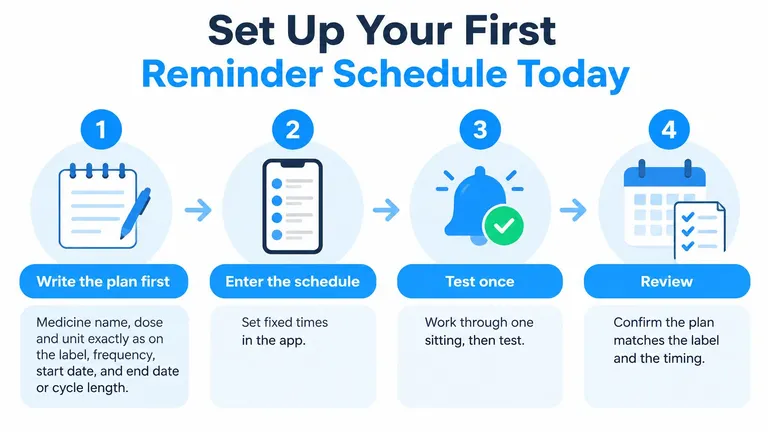
This setup flow keeps the written plan at the center.
Enter, test, and inspect
-
Write the plan first. Copy the medicine name, dose, unit, frequency, start date, and any prescribed end date or cycle from your current instructions. Resolve unclear wording before entering it, because a neatly organized mistake is still a mistake.
-
Enter the timing and follow-up. Use fixed clock times only when they match the plan, and choose an available follow-up delay that suits your routine. Read the upcoming-event preview instead of relying on the schedule’s name.
-
Configure the phone. In Settings, open Notifications, select the app, and review notification permission, sounds, and lock-screen presentation; also inspect your relevant Focus settings. Hide previews if you don’t want medicine details visible while the phone is locked.
-
Practice taken and late logging. With the demonstration entry, record each state and inspect the resulting timestamps. Confirm that you can distinguish the scheduled time, administration time, and entry time where the app supports them, then remove practice records.
-
Enter planned breaks. Add any established pause, end, and restart dates before relying on the schedule. Inspect the event immediately before the break and the first event after it.
-
Add a convenient daily view. Use a widget or Live Activity if available and useful, then check what appears on the locked phone. Keep it only if it makes the routine clearer without exposing details you’d rather keep private.
-
Review real use. After a short trial, compare the history with what you recorded and investigate unresolved entries. Correct setup errors prospectively, and amend historical entries only when you know what happened.
Keep testing separate from treatment decisions
A late entry may reveal an inconvenient reminder time, but it doesn’t automatically justify moving the medicine itself. You can change how prominently a prompt appears without changing the prescribed regimen. Ask your pharmacist or prescriber when the treatment timing needs clarification.
If you compare apps, enter the same established plan into each and inspect the difficult cases: a late entry, a pause, an edit, and an unresolved dose. Keep only one active reminder system during real use so competing alerts don’t create confusion.
Choose the app whose history remains understandable after those tests, then remove unused schedules and permissions. The right result is a workable record, not a screen full of completed checkmarks.
PepFlow offers manual dose tracking, flexible schedules, cycles, pause periods, and dose history for people following an established peptide plan. Visit PepFlow to explore an iPhone tracking workflow that helps you organize reminders and record your routine without choosing treatments or doses for you.