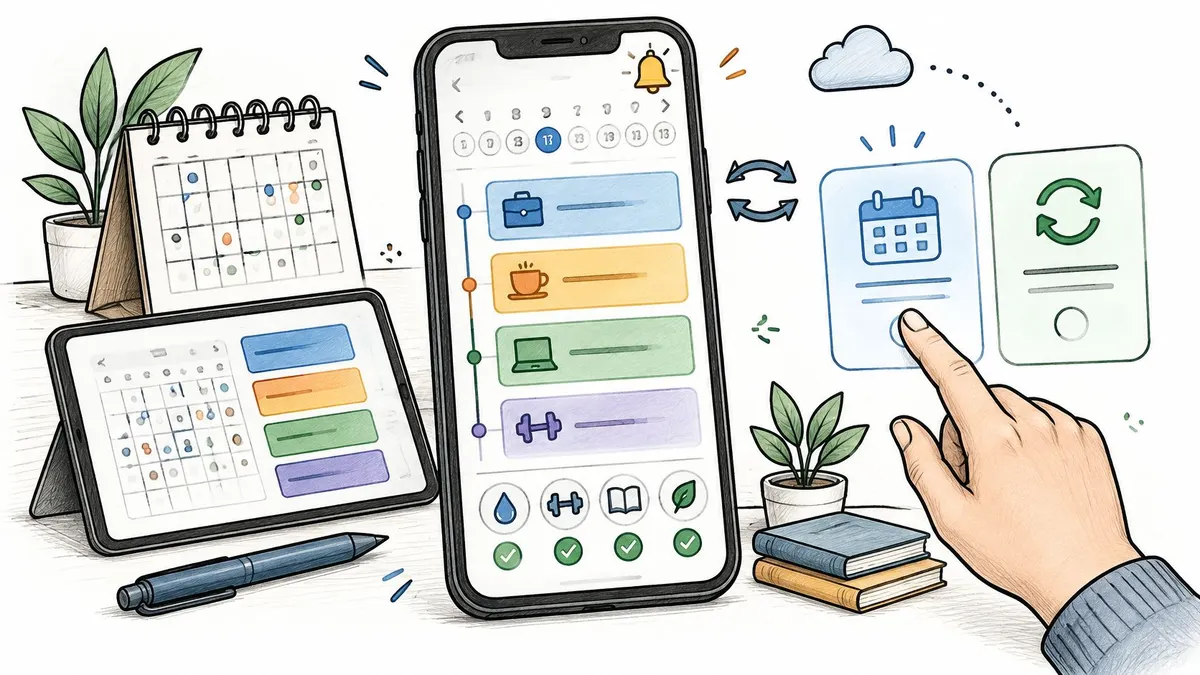
Your phone has reminded you about the same task again, but you still haven’t done it. Yesterday’s unfinished items sit above today’s appointments, and you can’t remember whether you completed your evening routine or dismissed the alert. Downloading another daily planner app sounds helpful, but only if it doesn’t become another list to maintain.
The useful test isn’t how neatly an app displays a perfect day. It’s what happens when you travel, postpone something, or stop a routine temporarily. Choose a planner that makes those exceptions easy to record, and you’ll have a system you can return to without rewriting your history.
Table of Contents
- Choosing the Right Daily Planner App Type
- Must-Have Features Every Daily Planner Needs
- Reminder Design That Builds Routines Without Nagging
- Handling Skipped, Paused and Rescheduled Tasks
- Privacy, Accessibility and Sharing History With a Clinician
- Connecting Your Planner to Calendars and Phones
- Pick One Planner and Test It for Seven Days
Choosing the Right Daily Planner App Type
Daily planner app types and where each fits
| Planner type | Best for | Main strength | Main limitation |
|---|---|---|---|
| Calendar-first | Meetings and appointments | Shared views and invites | Weak for small recurring habits |
| Task-first | Project to-do lists | Priorities, subtasks and due dates | Can feel like a backlog, not a day plan |
| Time-blocking | Focused deep-work days | Drag tasks into hour slots | Needs daily upkeep to stay accurate |
| Habit and routine tracker | Repeating actions | Streaks, recurring reminders and history | Limited for one-off tasks |
| Medication or protocol scheduler | Timed doses and supplements | Dose logs, schedules and cycles | Not a substitute for medical advice |
It’s best to start with one primary planner, adding a specialist tool only when it records something the main planner can’t. Many apps combine categories, so judge the daily workflow rather than the label.
A survey of 1,000 participants, summarized by Exploding Topics, reported that 70% of adults primarily use digital calendars, with 46.7% primarily accessing their digital calendar through a mobile app, compared with 23.3% through a desktop application. These are directional survey findings, but they reinforce a practical requirement: your planner should be usable on a small screen while you’re away from your desk.
Match the app to the job you forget
A calendar-first app makes sense when your main problem is arriving at appointments or coordinating shared timing. A task-first app fits work that needs priorities and subtasks, while time-blocking helps you decide when that work will happen.
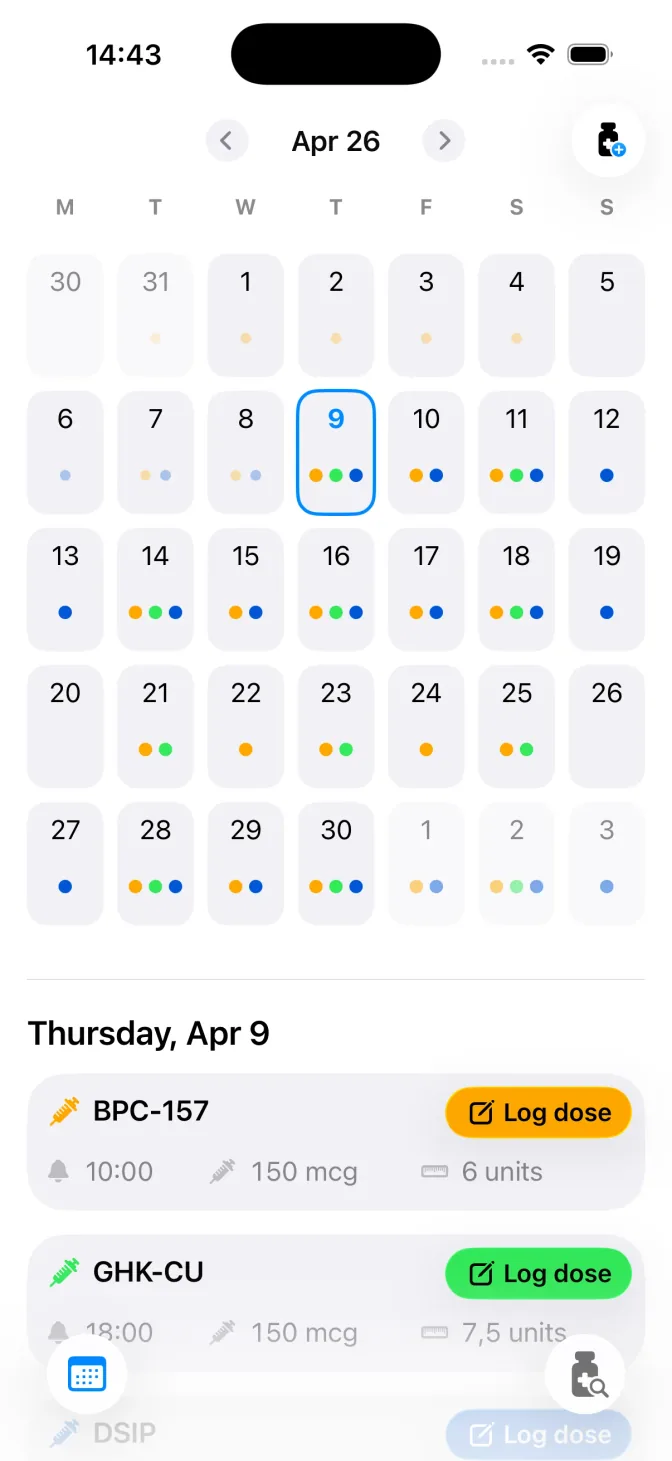
For stretching, water intake, or an evening reading routine, a habit tracker may be enough. Timed supplements or established peptide protocols call for more specific records, particularly when dose logs, cycles, and pause periods matter.
Practical rule: The task you forget most often points to the right planner category.
If crowded lists and elaborate setup make planning harder, Jan Kutschera’s guide can help you find ADHD-friendly daily planning systems. Use it to consider whether visual structure and a simpler daily workflow would suit you better than additional customization.
Compare candidates on practical criteria
- Primary job: Check whether the app’s main screen supports your actual daily action, not just a feature you might use someday.
- Reminder control: Look for adjustable timing and repetition rather than alerts you can only enable or disable.
- History and export: Confirm that you can review outcomes and take your records with you.
- Data storage: Establish whether information stays locally, uses your cloud account, or passes through the vendor’s servers.
- Cost model: Check which essential functions require payment and whether the purchase is recurring.
For a specialist example, PepFlow is our peptide tracker for iPhone, iPad, and Android, with dose records, schedules, cycles, and pause periods. On iPhone and iPad, users independently enter dose details and optional preparation and syringe information. Our freemium service has no initial cost, and PRO is available as a one-time purchase or a monthly or yearly subscription.
The distinction is important: it organizes an established plan rather than deciding what doses you should take. Don’t choose a health-related tracker because its interface appears authoritative. Choose it because it accurately records the plan you’ve already confirmed.
Must-Have Features Every Daily Planner Needs
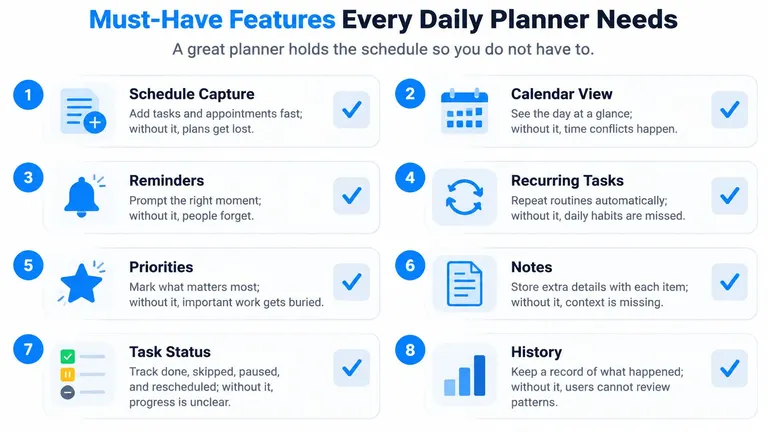
A planner’s core job is to hold the schedule so you don’t have to. Look beyond attractive screenshots and try the actions you’ll need when you’re busy.
Check the everyday workflow
Day, week, and agenda views should let you move between immediate actions and upcoming commitments. Without that flexibility, you may see a task list without noticing that your afternoon is already full.
Recurrence rules need to match your routine, not force it into a daily checkbox. Try hypothetical patterns such as weekdays only, every three days, and every other week before committing.
Reminders with lead time let you prepare before an event, while sound and vibration choices let you adapt alerts to your surroundings. A fixed alert at the deadline may arrive too late to be useful.
Quick completion from a notification reduces the work of maintaining the plan. Check that tapping complete records the action rather than merely clearing the notification.
Check what survives a disrupted day
Pause, skip, and reschedule states should be available without deleting the underlying routine. Their meanings matter, particularly when you review interruptions later.
Outcome history should distinguish completed, skipped, and missed items. A disappearing checkbox isn’t enough if you need to know what happened.
Cross-device sync matters if you plan on a computer but act from a phone or tablet. Test whether an update reaches the other device correctly, rather than assuming device availability means reliable synchronization.
Offline use keeps your plan visible without a connection. Check whether you can also record an action offline and whether it remains intact after reconnecting.
For a practical comparison, mark each capability as supported, unsupported, or untested. Don’t award credit for a feature you haven’t successfully used.
- Count supported capabilities: Use these eight checks as your own purchasing checklist, not a validated assessment.
- Investigate gaps: Treat fewer than six supported capabilities as a reason to examine whether the missing functions matter to your routine.
- Avoid partial credit: An app with recurrence, reminders, history, and sync, but none of the other listed capabilities, meets four checks.
A specialist tracker may reasonably lack a desktop view. That’s different from lacking the history you chose it to preserve. Weight the omissions by their consequences, not just the total.
Reminder Design That Builds Routines Without Nagging
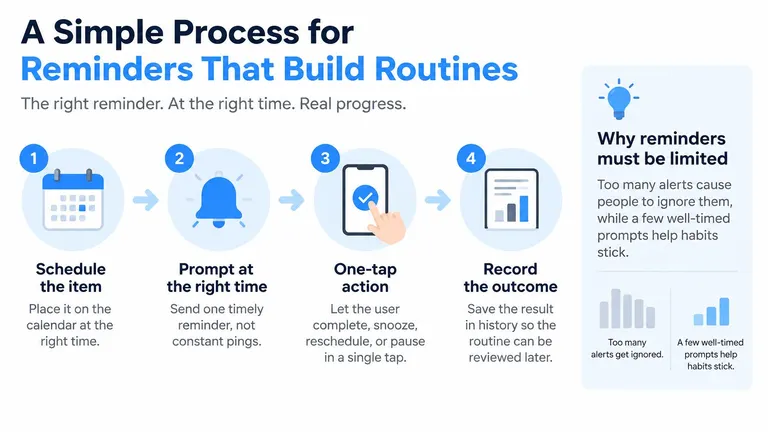
An effective reminder belongs to a complete action loop: schedule the item, prompt at an appropriate time, offer a quick response, and save the outcome. Sending a notification completes only the prompting step.
Give every interruption a purpose
An experimental study of mobile-phone notifications found that receiving a notification disrupted performance on an attention-demanding task even when participants didn’t interact with the phone. It didn’t establish an ideal alert frequency, so more reminders shouldn’t automatically count as better design.
Start with a primary reminder and, where useful, a gentle follow-up. Look for controls over timing, sound, vibration, and repetition, plus actions for completion, snoozing, and skipping.
Say an established supplement schedule includes a hypothetical 7:30 AM item. A reminder with a 30-minute snooze gives you a deliberate way to respond when you’re temporarily away from it; three automatic alerts over an hour may interrupt you without clarifying what you should do next.
The first arrangement offers a clearer route to a recorded outcome. Neither pattern guarantees completion, and a snooze must never be interpreted as permission to change medically important timing.
A dismissed notification tells you that an alert disappeared. It doesn’t tell you that the task happened.
Understand what reminder evidence supports
A BMJ Open meta-analysis of nine randomized controlled trials involving 988 participants found that medication-support apps were associated with higher self-reported adherence, with an odds ratio of 2.120 and a 95% confidence interval of 1.635–2.747. That isn’t a percentage-point improvement, and it doesn’t prove that every reminder design works.
A 2025 systematic review found improved medication adherence in all 14 included trials, although only 10 reported statistically significant improvement. Both findings concern medication adherence, not peptide routines or the effectiveness of a particular planner.
For practical ways to connect prompts with recordkeeping, our guide to improving medication adherence offers further context. During your own app test, track snoozes, disabled alerts, logging effort, and items left without a recorded response.
Choose the least intrusive setup that still helps you act. If alerts regularly arrive when you can’t respond, reconsider the setup rather than adding another sound.
Handling Skipped, Paused and Rescheduled Tasks
A useful planner lets you describe an interruption without pretending the original plan never existed. Changing today’s status shouldn’t erase yesterday’s intention.
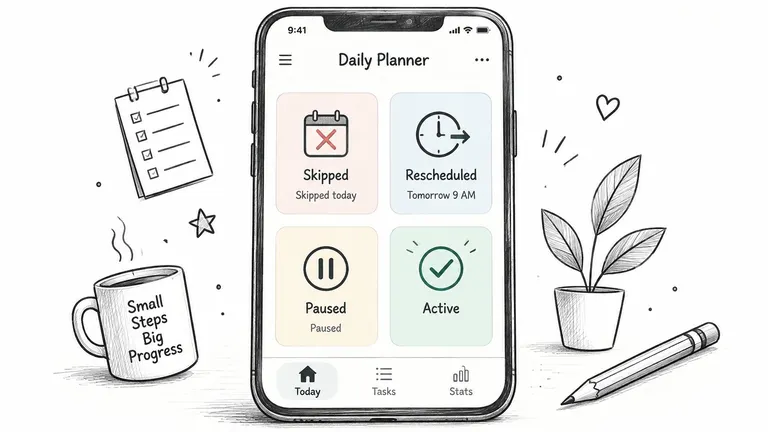
Task states and how each appears in history
| State | Meaning | How it appears in history |
|---|---|---|
| Skipped | You chose not to do it today | Marked skipped and counted apart from missed |
| Rescheduled | Moved to another time or day | Original time kept visible beside the new time |
| Paused | Stopped for a set start and end date | Shown as paused with no reminders until the end date |
| Missed | No response recorded | Marked missed only when no action was taken, never backfilled as done |
For a nonmedical task, skipping might mean deliberately leaving out today’s stretching session. Rescheduling means moving that session to the evening, while pausing means suspending the routine during a defined recovery period.
A missed entry is different: the app has no recorded response. That doesn’t necessarily establish that you didn’t do the task, particularly if you forgot to log it.
Keep exceptions understandable
- Preserve the original plan. Show the original scheduled occurrence alongside any change, so you can reconstruct what happened.
- Separate history from today’s work. Keep unresolved historical entries accessible without presenting every old item as something to complete now.
- Don’t invent completions. If you remember completing an item, record it retrospectively with an edit indicator; otherwise leave the uncertainty visible.
- Bound every pause. Record when suspension starts and when reminders resume, then check that the restart doesn’t generate duplicates.
For medication or supplements, recording a pause is an administrative action, not a recommendation to stop taking anything. Confirm changes to the underlying schedule with a qualified professional.
Read a disrupted week as a record
Suppose you record Monday’s scheduled supplement as completed. On Wednesday, you travel and record a clinician-approved pause for that item; on Thursday, a separate stretching task moves from morning to evening.
At Sunday’s review, the history should show Monday’s completion, the dated pause, and both times for Thursday’s moved task. It shouldn’t show the paused supplement as missed or retain an overdue stretching task after you completed the rescheduled occurrence.
Nondaily routines need the same care. Some established plans run every few days, include step-down stages, or have explicit start and stop dates, so a pause must interact correctly with those boundaries.
Check whether restarting preserves the original recurrence or shifts it relative to the restart date. Those are different scheduling behaviors, and the app should make the choice visible rather than deciding for you.
Privacy, Accessibility and Sharing History With a Clinician
Sensitive routine information deserves a deliberate storage decision. Before entering dose details, distinguish the app’s local storage, synchronization service, analytics, and exported files rather than treating them as a single privacy setting.
Check storage and everyday access
Decide whether you need local-only records or synchronization through a cloud account. Then read the app’s privacy information and inspect its settings to establish where information goes and how you can delete or retrieve it.
An export creates another copy under your control. Save it somewhere appropriate, and check whether a shared folder or device backup could expose details you intended to keep private.
- Visual access: Enlarge system text and try the app’s main screens with a screen reader.
- Hearing access: Test vibration-only notifications and distinct haptic patterns where supported.
- Cognitive access: Check whether buttons have clear labels and whether you can reverse an accidental action.
- Language access: Confirm that reminders and status descriptions are understandable in your preferred language.
Don’t assume an accessibility setting works everywhere because it works on the home screen. Try adding an entry, responding to a notification, and reading history with the settings you need.
Prepare records for interpretation
A 2025 mixed-methods study of nine medication-adherence apps found that tracking history was the most desired feature, with a mean rating of 5.29, and participants expressed particular interest in interpreting their information with a health-care professional. A detailed log is most useful when someone can understand its labels and limitations.
Before an appointment, export a dated history with the routine name, scheduled time, recorded outcome, and relevant notes. Mark uncertain gaps and identify retrospective edits rather than presenting the export as an automatically verified account.
Our medication tracker app guide can help you assess whether a tracking workflow fits that purpose. If logging creates distress or pressure to achieve perfect records, simplify the process and discuss those concerns with a professional.
A planner organizes information. A clinician interprets it in the context of your care.
Connecting Your Planner to Calendars and Phones
| Integration route | What it moves | Main setup risk |
|---|---|---|
| Two-way calendar sync | Events and reminders | Duplicate entries if both apps create the same item |
| Home or lock screen widgets | Today’s items and status | Shows only what the app already stores |
| Share sheet import | Text or links into a task | Imports can lack a time or recurrence |
| CSV export | Full history for backup, where supported | Columns may not match when re-imported |
| Automation shortcuts | Actions triggered by time or place | Hard to debug when a trigger fails silently |
Integration is useful when it puts the plan where you already look. A widget reduces navigation, while calendar sync can place appointments alongside tasks, but neither automatically guarantees accurate records.
Industry estimates compiled by 9cv9 put global scheduling-app penetration at 26.37% in 2021 and 51.68% in 2023. Those estimates offer context for widespread scheduling habits, not evidence that any specific integration is reliable.
Establish ownership before connecting apps
- Choose a source of truth: Decide which app owns each item and which merely displays it.
- Check time zones: Establish whether an event follows local time or remains tied to its original time zone before traveling.
- Test a sample: Create an item, edit it from each side, and remove it before importing your full routine.
In a hypothetical setup, a 7:30 AM supplement event created in your calendar should appear once in the planner, not as another independently created event. If both apps notify you, disable the unnecessary alert without deleting the underlying record.
For health-related schedules, don’t let a phone’s time-zone change determine administration timing. Our explanation of schedule dates and times provides context for reviewing those settings.
Integration check: A connection is only useful if you can still explain the record after information moves between apps.
Finally, test portability. If the app supports CSV re-import, import an exported file into a separate test copy and confirm that dates, status labels, notes, and columns align.
If re-import isn’t supported, open the file in a spreadsheet and inspect it instead. An export button alone doesn’t establish that the file is a complete, restorable backup.
Pick One Planner and Test It for Seven Days
Choose a short trial with real tasks rather than rebuilding your entire life inside a new app. The following seven-day test is a practical exercise, not a validated scoring system.
Before starting, inspect storage settings. In PepFlow, most information users enter stays on their device or syncs through Apple services; don’t assume another app uses the same arrangement.
Run a realistic trial
- Shortlist two candidates. Choose a general planner and, if you need dose records, a specialist tracker. Inspect both, then use one as your live planner so you don’t create conflicting records.
- Enter three real routines. Use their actual recurrence patterns, including start dates and any planned end dates. Don’t simplify an unusual schedule just to make setup easier.
- Set one reminder per routine. Note when it fires and whether another device or connected calendar repeats it.
- Record completions that day. Pay attention to the effort involved when you’re busy, not just when you’re sitting down to evaluate the app.
- Test a pause and a reschedule. Use a harmless sample task for these checks rather than changing a medication or supplement schedule to test software.
- Review at the end of day seven. Count snoozes and disabled alerts, inspect unresolved items, and check whether you understand each history entry.
- Make the decision. Keep the app that produces the clearest record with the least maintenance. If it fails an essential check, test the alternative rather than compensating with more alerts.
Keep the decision simple
A polished dashboard shouldn’t outweigh a confusing daily workflow. Prefer the app you can update accurately while distracted over the one that requires a quiet planning session for every change.
Planners organize routines but don’t provide medical advice. Confirm medication, supplement, or peptide schedules with a qualified professional, and use the app to record that established plan.
Start today: choose your first candidate, enter your real routines, and put the review date on your calendar.
PepFlow helps you organize established peptide routines with schedules, dose logs, cycles, and pause periods. Visit PepFlow to see whether its tracking approach fits your daily planning needs, then test it with a plan you’ve confirmed with a qualified professional.